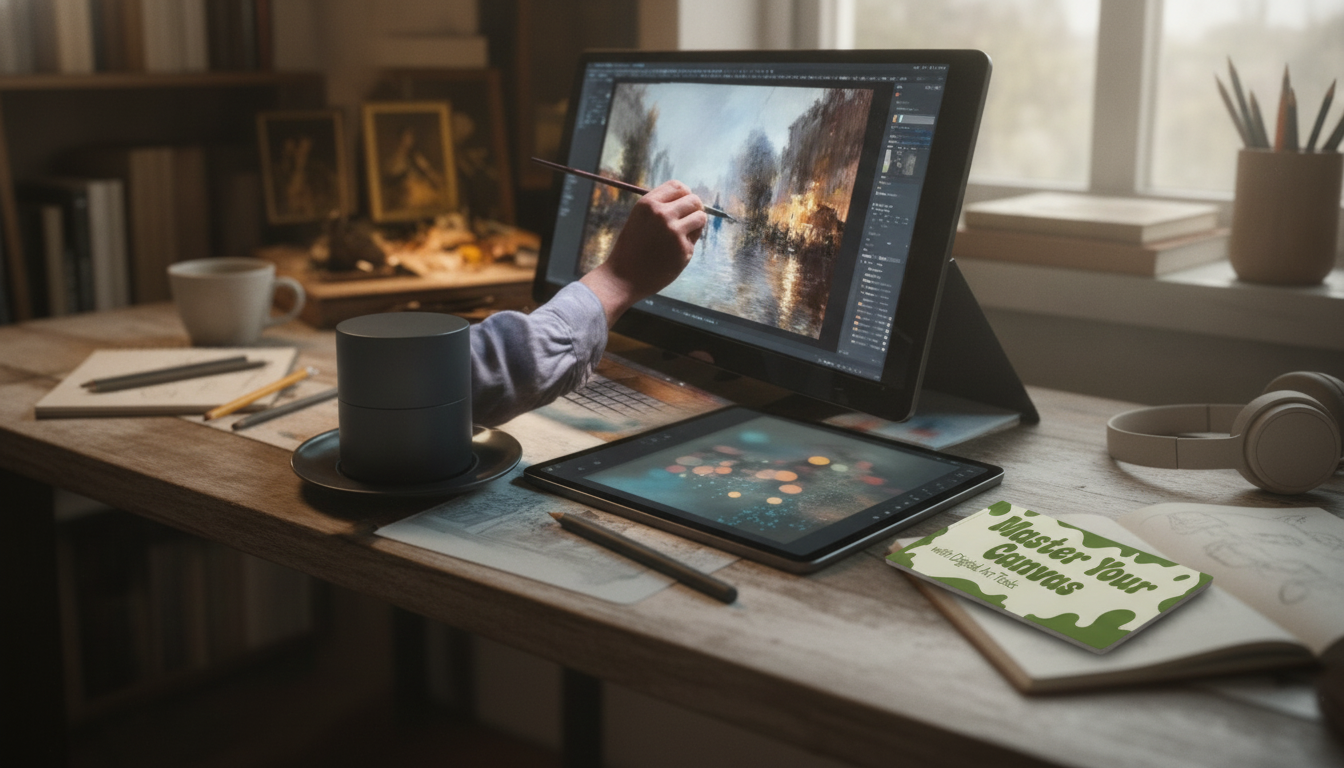
Starting digital art can feel like getting dropped into a cockpit: unfamiliar interfaces, endless brush presets, and file settings that sound more technical than creative. The good news is that beginners don’t need expensive gear or a huge tool collection to make progress. What helps most is understanding a few core tools, setting up a simple workflow you can repeat, and practicing with exercises that build confidence quickly.
Digital art often feels difficult for one main reason: there are too many options at once. Brushes, layers, blending modes, shortcuts, and panels can create instant decision fatigue. It’s also common to expect traditional drawing skills to transfer 1:1—then feel frustrated when lines look different, blending behaves oddly, or colors shift on screen.
Most early bottlenecks are practical, not “talent” problems: tablet setup quirks, too much stabilization (or none), shaky line confidence, and choosing colors without a plan. The fastest fix is to use a repeatable workflow with a small tool set, so you spend more time making art and less time tinkering.
A beginner-friendly loop that works across most apps is: sketch → refine → value → color → polish. Repeating this process trains your eye and builds familiarity with tools naturally.
Digital tools are powerful because they let you edit without starting over. That power becomes a distraction if everything is “on” at once. Start by learning what each tool is for and how they work together:
| Tool | Best used for | Beginner tip |
|---|---|---|
| Brush + pressure settings | Lines, shading, texture | Start with 3 brushes: sketch, ink, soft shade |
| Layers | Organization and revisions | Name layers and group them (Sketch/Line/Color) |
| Masks | Non-destructive edits | Use layer masks instead of erasing whenever possible |
| Selection tools | Fast edits and clean shapes | Feather slightly for soft edges; keep hard edges for cel shading |
| Transform | Fixing composition/proportions | Adjust early; avoid heavy warps after rendering |
| Blending modes | Lighting and color effects | Use Multiply for shadows and Screen/Overlay for light—sparingly |
If you want a guided explanation of these tools in plain language (plus a workflow you can follow without guessing), Master Your Canvas with Digital Art Tools | Beginner-Friendly Ebook with Digital Art Tools Explained is designed as a practical reference while you practice.
A reliable workflow reduces overwhelm because you always know what to do next. Keep the steps simple and repeatable:
To speed up painting without hunting menus, many artists rely on keyboard shortcuts. A comfortable mechanical keyboard setup can make repetition less fatiguing during long sessions; the Purple Double-Shot PBT Cherry Profile Keycap Set is a simple upgrade if you’re building a shortcut-heavy workspace.
Skill growth happens faster when practice is specific. These drills are short, repeatable, and directly tied to the tools you’ll use in real pieces:
For app-specific help, reputable documentation and tutorials can fill in gaps without guesswork, such as the Krita Manual or Adobe’s digital painting and drawing tutorials. If you share your work publicly, accessibility guidance like the WCAG overview can also help when presenting text, contrast, and visuals in a way more people can comfortably view.
No. A tablet helps with pressure sensitivity and line control, but beginners can still learn tools and workflow using a mouse or a basic stylus—especially for simple studies and layer-based exercises.
A small set works best: a sketch brush, an inking brush, a soft shading brush, and optionally one texture brush. Mastering a few predictable tools builds consistency much faster than constantly switching presets.
Focus on your pressure curve, light stabilization, and controlling opacity/flow so strokes build gradually. Layers and masks also matter a lot because they keep edges clean and let you adjust without repainting.







Leave a comment